Permission Roles vs Roles in TapGoods PRO
The Permission Roles tab in TapGoods PRO allows you to add additional roles to the system beyond the default roles that TapGoods provides. This page is not to be confused with the Roles tab, which is used to add Roles that Team Members will take on during Order Processing. In this article, each tab will be defined and differentiated.
Permission Roles
Upon subscribing to TapGoods PRO, the Permission Roles page will automatically populate the default Roles that users can be assigned to in TapGoods PRO:
- Super Admin
- Admin
- Manager
- Team Member
- Warehouse Manager
- Partial User
You may assign your Team Members to various Permission Roles in TapGoods PRO, depending upon the amount of Full and Partial Users you are allowed.
**Do you know how many Full and Partial users come with your subscription tier? Check out this resource! If you would like to add additional users to your account, reach out to your TapGoods Representative.**
Permission Roles that are added to the Permission Roles tab will populate in Permissions, where users can change what features are visible and editable for each role.
Roles
Roles in TapGoods PRO are additional identifiers that you can assign Team Members during Order creation, which will help your internal operations keep track of who is overseeing the Order and their associated role at your organization. Roles are located in Team Settings>Roles.
It is important to note that Roles will NOT populate in the Permissions tab, and assigning a Role to a Team Member does not change their Permissions in TapGoods PRO.
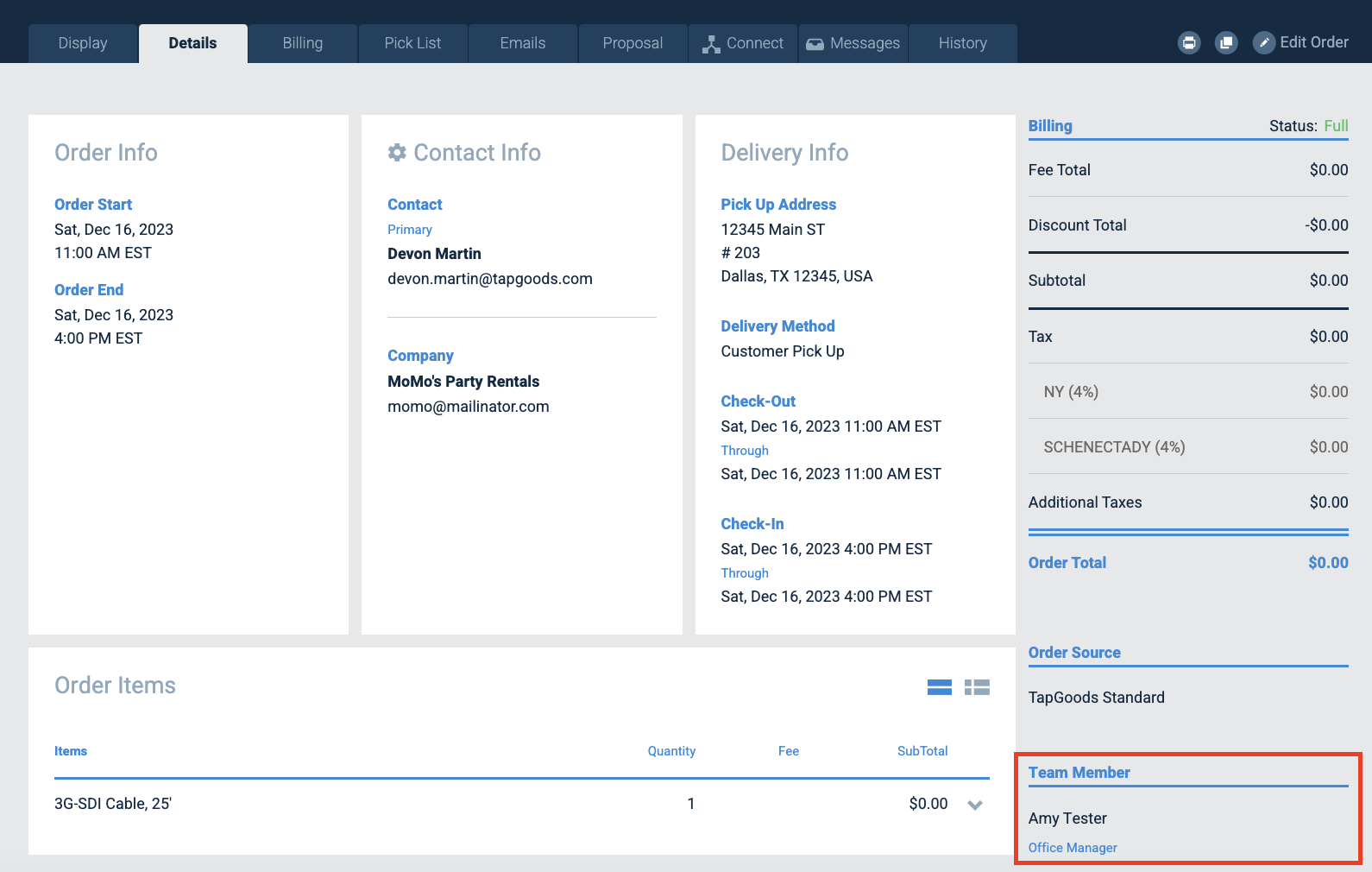
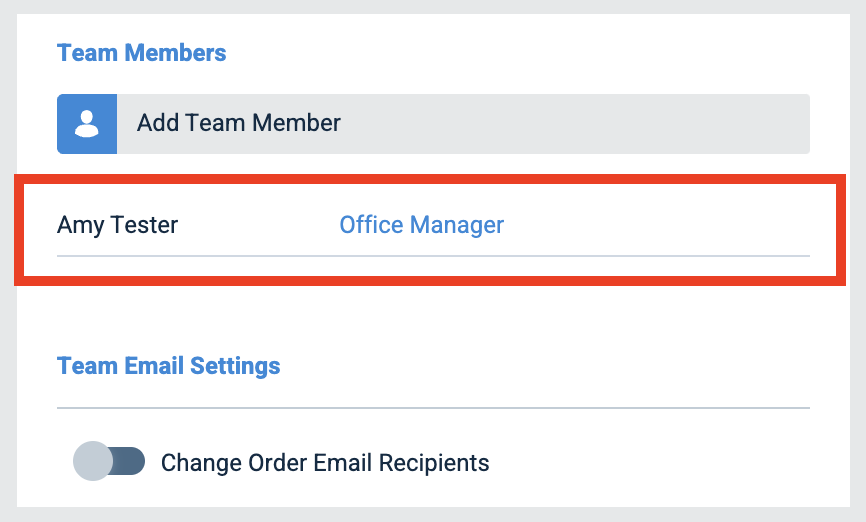
Once you assign a Role to a Team Member, it will appear on the Order Details tab of the Order Form AND on the Display tab of the Order after it is created.
 Related Articles
- Customizing Permission Roles in TapGoods PRO
- How To: Add Team Members to an Order
- [Advanced Permissions] Adjusting Partial User Permissions