
Admin Settings: Routing
The Routing Settings in TapGoods allow you to manage your trucks effectively and streamline the logistics of your operations. These settings are useful to TapGoods PRO users by providing efficient truck management and easy truck customization, making organizing your trucks easier than ever.
Routing Settings are located under the Admin tab of the TapGoods PRO menu.
Want to follow along in your account? Click here to open up Routing Settings in TapGoods PRO!
Once you are in Routing Settings, you can perform the following actions:
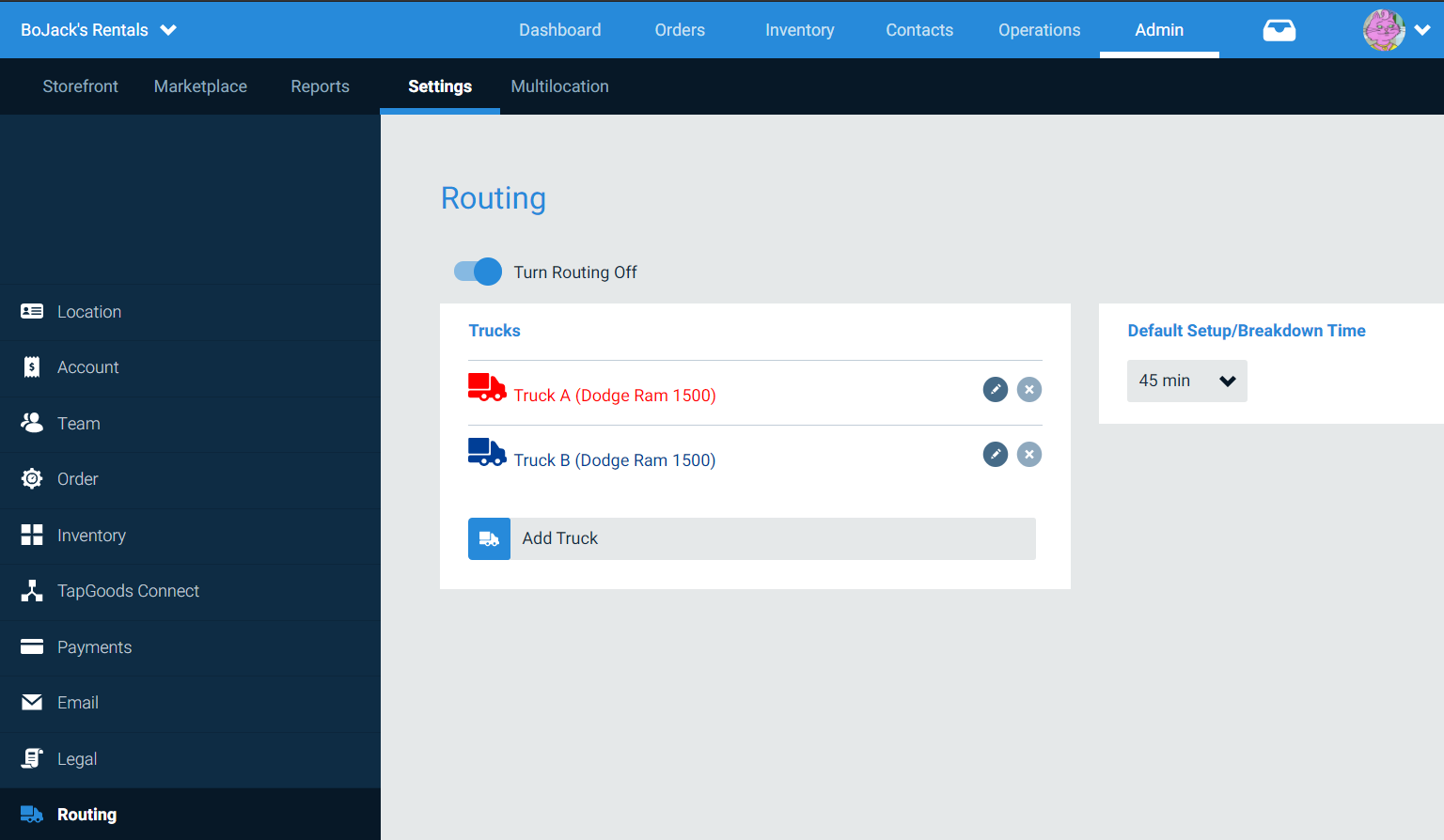
- Turn Routing ON/OFF
- Add/Delete Trucks to TapGoods PRO
- Set up Default Setup/Breakdown Time
Turning Routing on or off
Routing functionality within TapGoods can be toggled on or off simply with the switch at the top of the page.
Creating a new Truck
On this page, you can quickly create new trucks by following the steps listed below:
- Click Add Truck.
- Select a Truck letter from the dropdown
- Type in a name
- [OPTIONAL] Assign a color
- Click Add Truck.
Editing an existing Truck
To edit an existing truck, simply click the Pencil icon next to the truck.
Deleting a Truck
Click the light gray X icon next to the name of the Truck to delete it.
Updating Default Setup/Breakdown Time
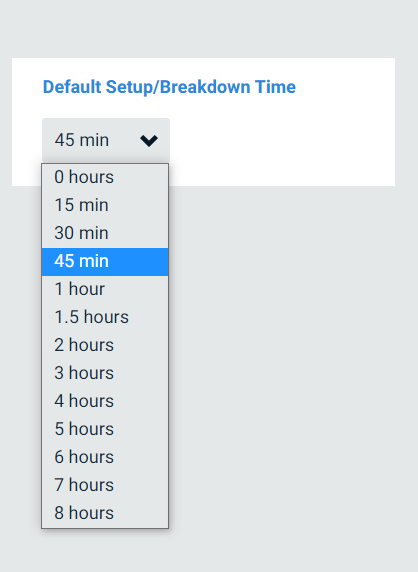
The Default Setup/Breakdown Time in Routing Settings is the amount of time that your truck will be unavailable between deliveries for setup and breakdown. To set this up, follow the steps listed below:
- Click the dropdown menu.
- Select the applicable value desired.
Related Articles
- Picklist Settings in TapGoods PRO
- Financial Settings in TapGoods PRO
- Location Settings in TapGoods PRO