Editing Bundles in TapGoods PRO
Once you have added a Bundle to TapGoods PRO, you can add detailed information to it. The information necessary to create a Bundle in TapGoods PRO are the Name and Quantity of the Bundle. Although the requirements to create a Bundle are minimal, you can add as many details as needed to the Bundle that will help Customers understand all aspects of the product.
In Edit Bundle, you can edit three sections:
- Images & Specs
- Details
- Timing & Numbers
Once you have edited each section to your preference, click Submit to save the changes to the Bundle. Read the sections below for details of each section available while editing your Bundles.
Images & Specs
TapGoods PRO users can customize images, colors, materials, and SEO categorizations that are associated with Bundles in their inventory.
The following options are provided to users who want to create a comprehensive and detailed Bundle inventory…
-
Images: Click on the Plus icons to add images to your Bundle. You can add up to four images to a Bundle.
-
Colors: This field allows users to provide customers with color options of a Bundle. You can add multiple colors to a Bundle by clicking on each color that you would like to add. Colors that have already been added will display a check mark.
-
Bundle Notes: If there are any details that must be noted about the Bundle that should not be included in the description, TapGoods PRO users can add those details in the Bundle Notes by filling in the text field provided.
-
SEO Meta Data: This is how your inventory will be described in search results. TapGoods PRO users can customize what will appear to Customers who are searching for the product. Users can also provide keywords that apply to the Bundle.
Details
Bundle details are important to provide for customers as well as internal employees who need information on a particular Bundle. Filling out the Bundle Details section of the Add a Bundle page will provide essential details such as…
- Name: Give each Bundle a unique Name.
-
Description: TapGoods users should use this section to provide a detailed description of the Bundle. This description will be available for customers to read on Storefront.
-
Add Inventory to Bundle: Use this section to add Inventory to the Bundle. Click Add Inventory to add Items, Accessories, and/or Purchases to the Bundle. One useful feature of TapGoods PRO is that you can add Bundles to Bundles!
- Tags: TapGoods PRO users can add Tags to Bundles to make them easier to categorize.
-
Departments: If a Bundle belongs to a particular Department within the user’s company, users can input the department here.
Timing & Numbers
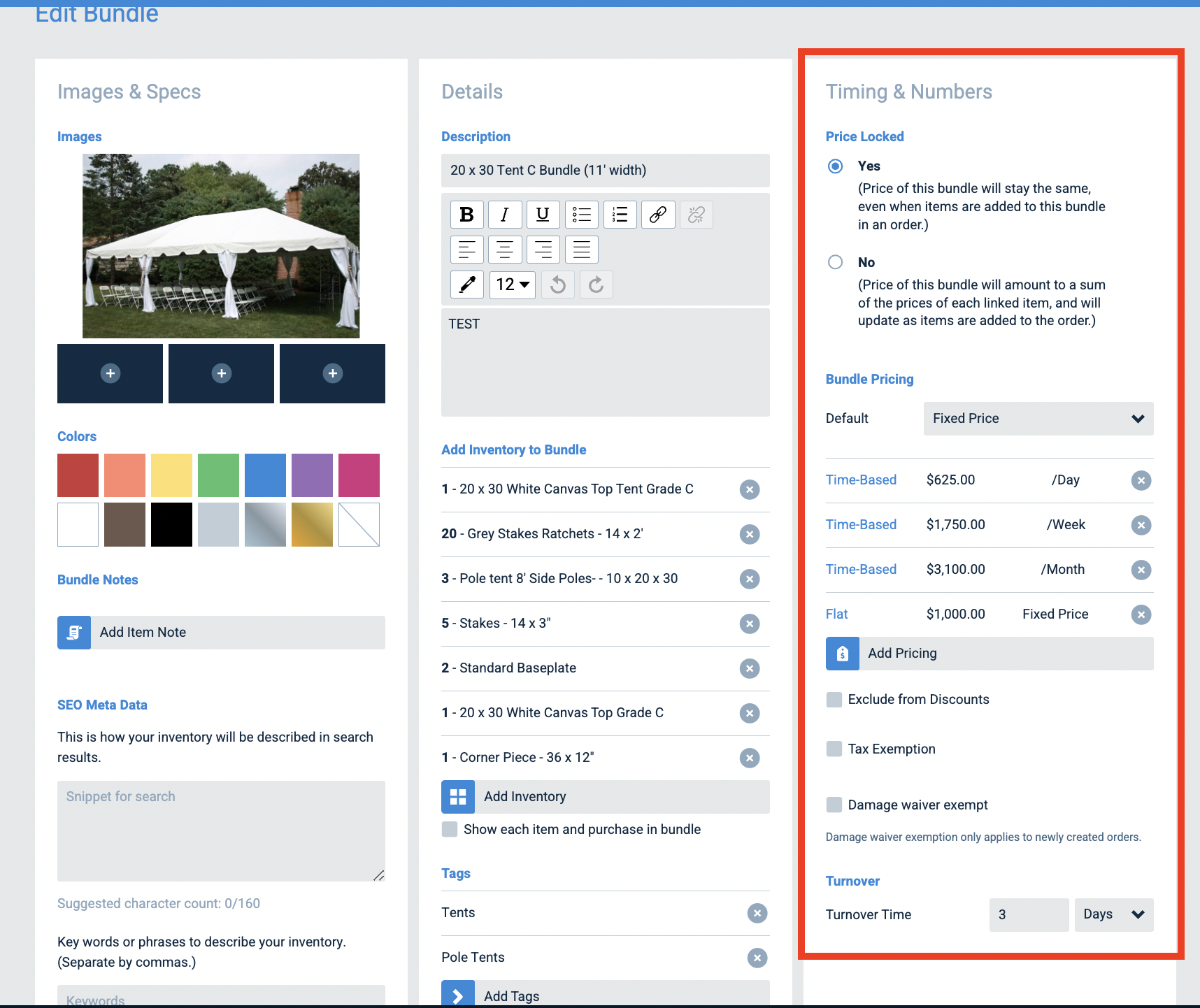
Using the Timing & Numbers section of the Add a Bundle page, users can add…
- Price Locked: If the price of a Bundle is locked, it will stay the same regardless of whether new Items are added to the Bundle or Order. If the price of a Bundle is NOT locked, it will amount to the sum of all the products included and will change if new Items are added to the Bundle or Order.
- Bundle Pricing: Users will use this section to set a price for the Bundle (the amount of money that the customer will pay). Add a Default Pricing to this section by clicking the dropdown arrow. It is important to note that if you would like to add a Default Pricing to a Bundle, it must already have been added to the Bundle [i.e. To make a Flat Fee the default Price for a Bundle, it must already be added to the Bundle]. TapGoods PRO offers Time Based Pricing for Bundles that will be billed according to the amount of time that the Bundles are used, and a Flat Price for Bundles that are priced according to how many are ordered.
-
Turnover: Some Bundles in TapGoods PRO may require a certain amount of time to pass after they return from a rental before they may be rented again; this is known as a Bundle's Turnover time. To input a Turnover time, type the desired number of days/hours into the text field and use the dropdown menu to select Hours or Days.
- Exclude from Discounts: This setting lets users mark the bundle as excluded from discounts. This means that any discounts applied to the order will not apply to the bundled price.
- Tax Exemption: This setting lets users mark the bundle as excluded from tax calculation. This means that when this setting is enabled, taxes will not be calculated on the items in the bundle.
- Damage Waiver Exempt: This setting lets users mark the bundle as exempt from the Damage Waiver, meaning that the bundle's value will not contribute to the amount charged. When this feature is not enabled, the bundle price will be considered when calculating the Damage Waiver.
Related Articles
- Editing Accessories in TapGoods PRO
- Editing Items in TapGoods PRO
- Editing Purchases in TapGoods PRO?