Editing Purchases in TapGoods PRO
Once you have added a Purchase to TapGoods PRO, you can add detailed information to it. The information necessary to create a Purchase in TapGoods PRO are the Name, Quantity, and Pricing of the Purchase.
Although the requirements to create a Purchase are minimal, you can add as many details as needed to the Purchase that will help Customers understand all aspects of the product.
In Edit Item, you can edit three sections:
- Images & Specs
- Details
- Timing & Numbers
Once you have edited each section to your preference, click Submit to save the changes to the Purchase. Read the sections below for details of each section available while editing your Purchase.
Images & Specs
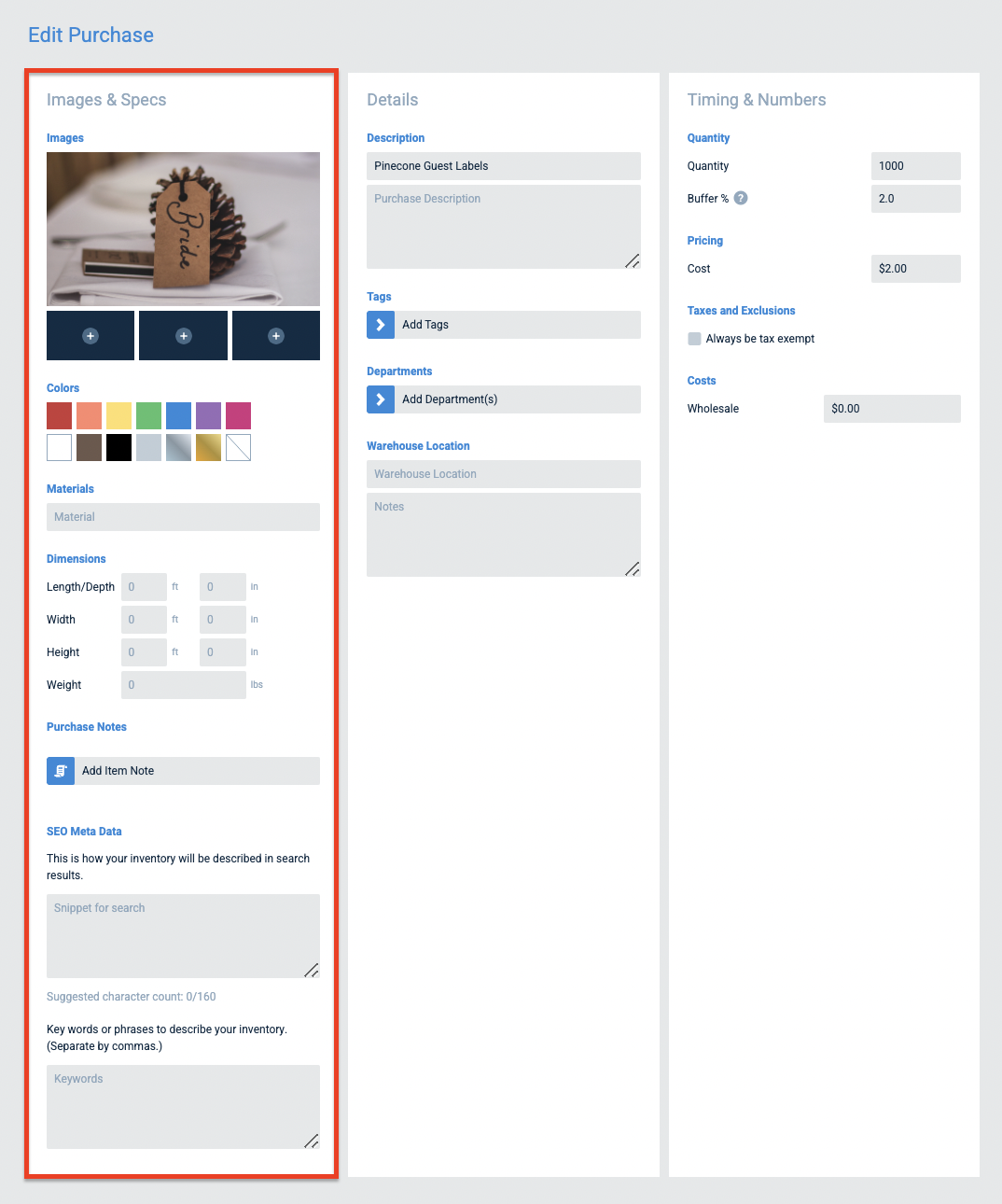
TapGoods PRO users can customize images, colors, materials, and SEO categorizations that are associated with Purchases in their inventory.
The following options are provided to users who want to create a comprehensive and detailed inventory…
- Images: Add multiple photos of a Purchase in this field by clicking the Plus icon. You can add up to four photos.
- Colors: This field allows TapGoods PRO users to provide customers with color options of a Purchase.
- Materials: If a Purchase is made of a variation of materials, users can add those details to this field (i.e. cotton, satin, etc.)
- Dimensions: Using this field, users can provide customers with measurements of the Purchase (i.e. height, width, and weight).
- Purchase Notes: If there are any details that must be noted about the Purchase that should not be included in the description, TapGoods PRO users can add those details in the Purchase Notes by filling in the text field provided.
- SEO Meta Data: This is how your inventory will be described in search results. TapGoods PRO users can customize what will appear to Customers who are searching for the product. Users will provide keywords that apply to the Purchase.
Details
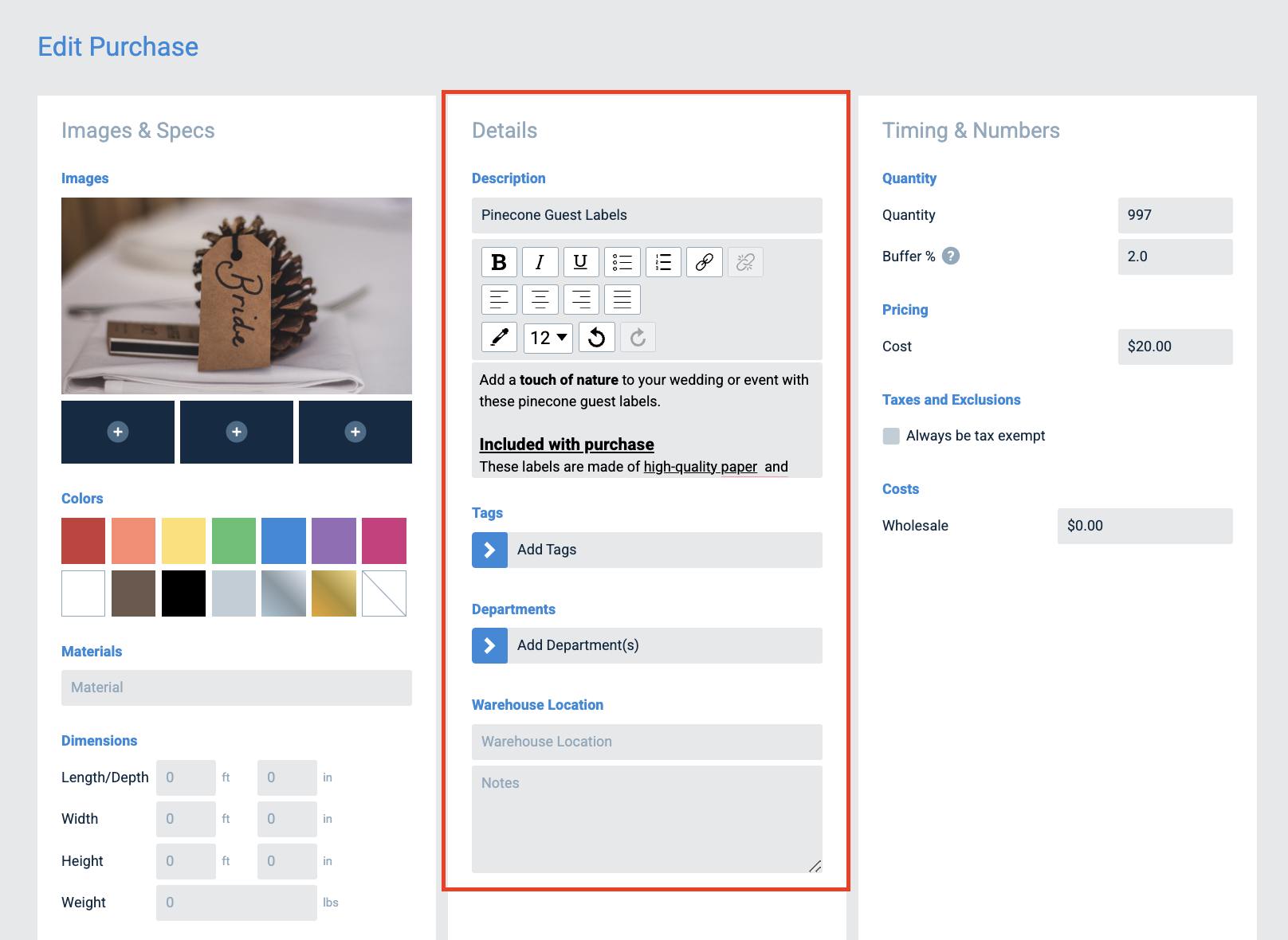
Purchase Details are important to provide for Customers as well as internal employees who need information on a particular Purchase. Filling out the Purchase Details section of the Add an Purchase page will provide essential details such as…
- Name: Use this field to give each Purchase a unique name.
- Description: TapGoods users should use this section to provide a detailed description of the Purchase. This description will be available for Customers to read on Storefront.
- Tags: TapGoods PRO users can add tags to Purchases to make them easier to categorize. Tags act as subcategories and assist with organization within the platform.
- Departments: If a Purchase belongs to a particular department within the user’s company, the Purchase can be added to the Department by clicking Add Department(s) and selecting the Department from the list. It is important to note that Departments must be added to the platform prior to adding Purchases to them.
- Warehouse Location: TapGoods PRO users can add a Warehouse Location for Purchases that are located in different Warehouses. Notes can be added as well for internal workers who need details on the Purchase!
Timing & Numbers
It is important to ensure that Purchases are properly priced and Itemized in the TapGoods PRO inventory. Using the Timing & Numbers section of the Edit Purchase page, users can add…
- Quantity: Users will use this section to add the amount of each Purchase that is available to the inventory count. In this section, you can add a Buffer % (a percentage of the inventory that is not available for the particular Purchase).
- Pricing: Add a price to your Purchase in this section.
- Taxes and Exclusions: In this section, you can make a Purchase tax exempt by checking the box next to Always be tax exempt.
- Costs: If there are any wholesale costs associated with the Purchase, it should be inputted into this section.
Related Articles
- How To: Create a New Purchase in TapGoods PRO
- Editing Items in TapGoods PRO
- Editing Bundles in TapGoods PRO