
Keeping your web browser up to date is a crucial aspect of keeping your browsing experience both secure and optimized while online. If you're currently experiencing issues accessing TapGoods, please ensure your web browser is up to date using the information provided below.

macOS: Safari
Apple's Safari is updated via Software Update in macOS as part of regular system updates. To check for system updates on your Mac, perform the following steps:

1. Press Command + Space Bar to use Apple's Spotlight Search.
2. Type in "System Preferences" to begin searching.

3. Click on the result "System Preferences.app" with a gear icon.

4. Click Software Update.
5. Your system will automatically check for updates. If a macOS system update is available, install it to ensure you are running the latest version of Safari for Mac. This is the only method to update Safari. Safari cannot be downloaded online or updated via web browser.
macOS: Google Chrome
1. Open Google Chrome.
2. Click the three dots (. . .) on the upper right-hand side of the window.
3. Drag the cursor down the menu to Help.
4. Move the cursor over to the left and click About Google Chrome.

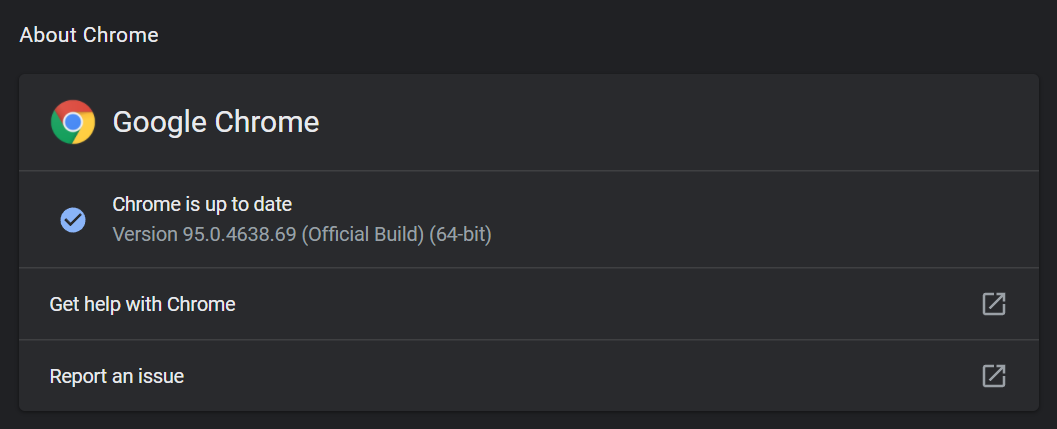
5. Chrome will automatically begin checking for updates. If one is available it will be installed.

6. After installing the update, fully close Google Chrome by right-clicking on the icon in the Dock and clicking Quit.
macOS: Microsoft Edge
1. Open Microsoft Edge.
2. Click the three dots (. . .) on the upper right-hand side of the window.

3. Drag the cursor down the list and click Settings.

4. Click About Microsoft Edge.
5. Edge will check for updates automatically. If an update is available it will be installed.

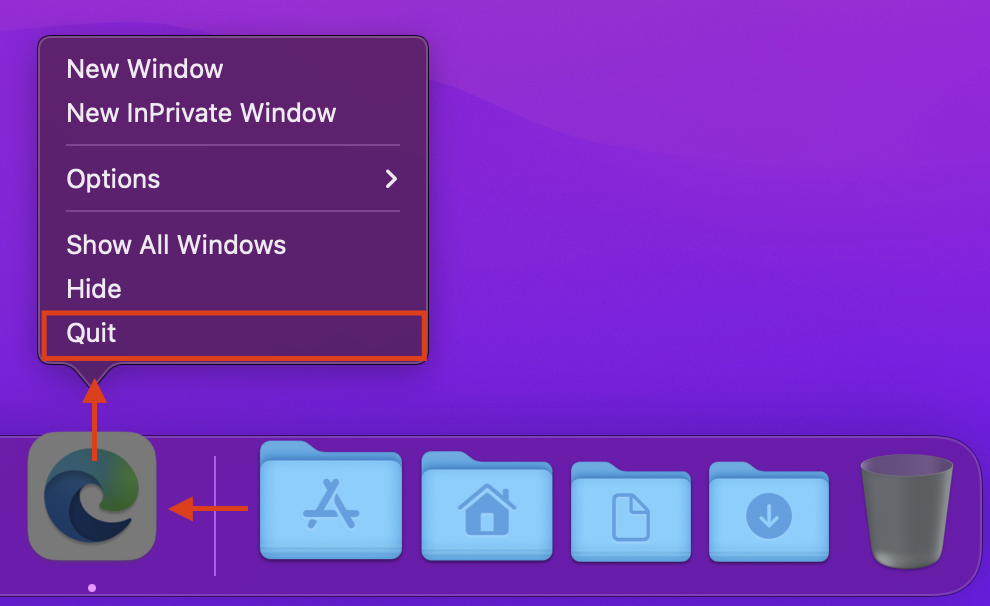
6. After installing the update, fully close Microsoft Edge by right-clicking on the icon in the Dock and clicking Quit.

macOS: Firefox
1. Open Mozilla Firefox.

2. Click the menu icon on the upper right-hand side, often referred to as a "hamburger menu" icon.

3. Click Settings.
4. Scroll down this page to find Firefox Updates. Firefox will automatically check for updates.

5. Should an update be available, install it by clicking Restart to Update Firefox.
6. Firefox will then close and re-launch itself as the latest version currently available.
Windows PC: Google Chrome
1. Open Google Chrome.
2. Click the three dots (. . .) on the upper right-hand side of the window.

3. Drag the cursor down the menu to Help.
4. Move the cursor over to the left and click About Google Chrome.

5. Chrome will automatically begin checking for updates. If one is available it will be installed.
6. After installing the update, fully close Google Chrome by right-clicking on the icon in the Windows Taskbar and clicking Quit. You may then relaunch the browser in its latest revision available.
Windows PC: Firefox
1. Open Mozilla Firefox.
2. Click the menu icon on the upper right-hand side, often referred to as a "hamburger menu" icon.
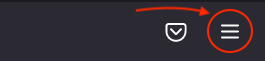
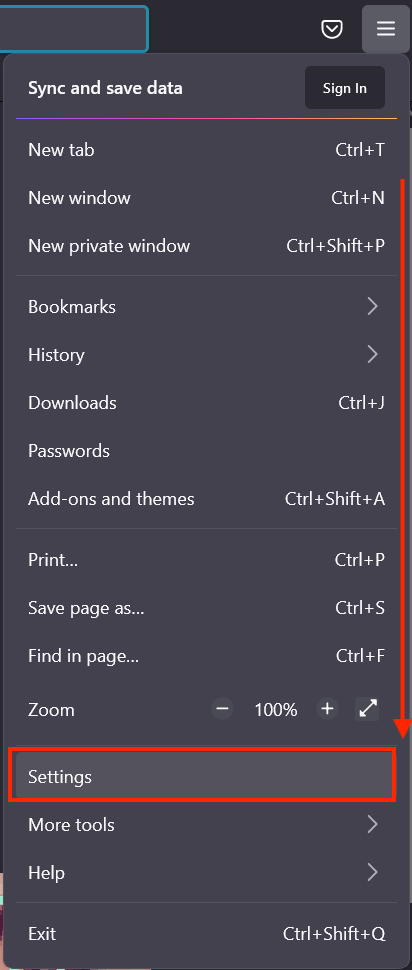
3. Click Settings.
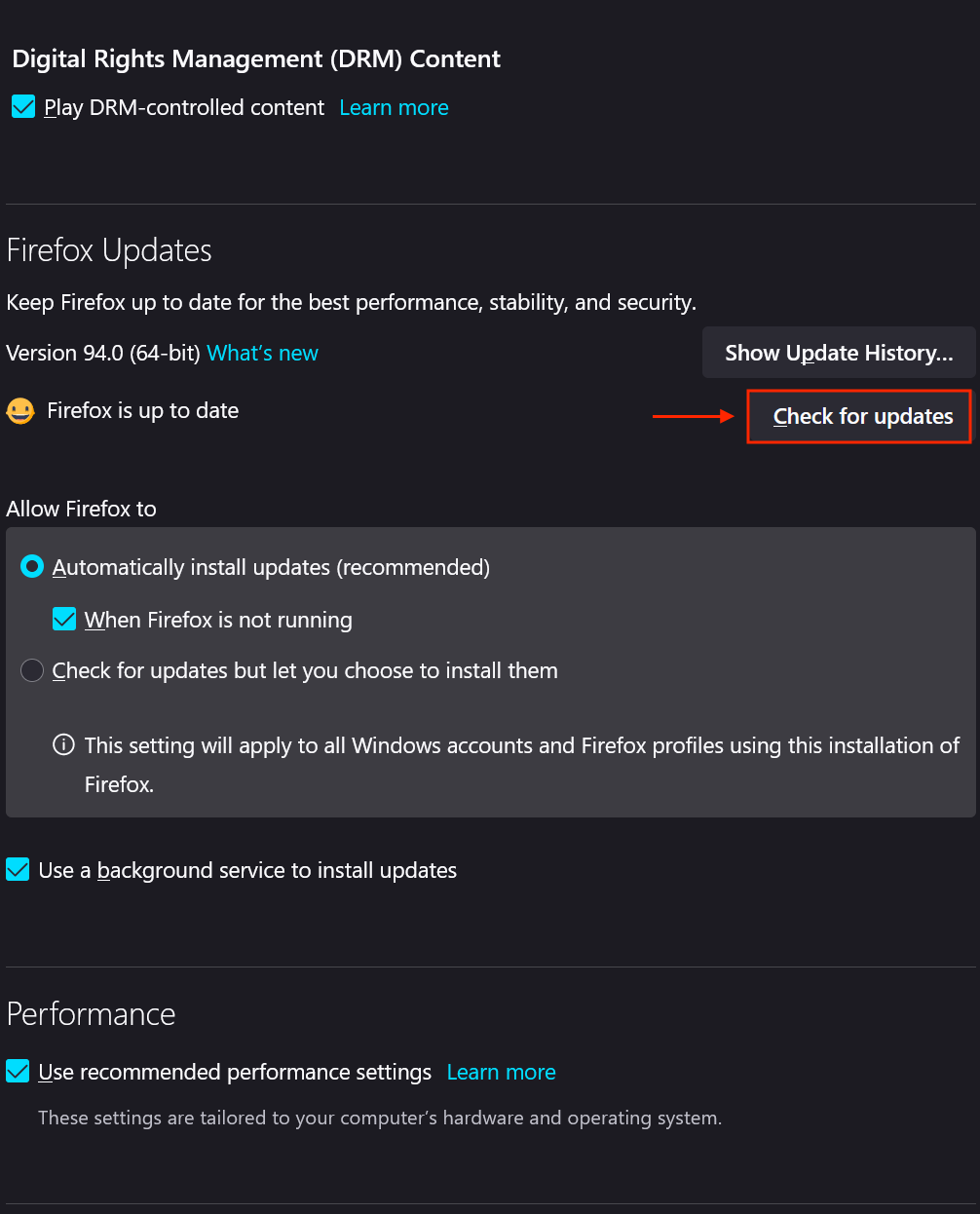
4. Scroll down this page to find Firefox Updates. Firefox should automatically check for updates. If it does not, you are able to manually Check for Updates.
5. Should an update be available, install it by clicking Restart to Update Firefox.
6. Firefox will then close and re-launch itself as the latest version currently available for Windows.
Windows PC: Microsoft Edge
1. Open Microsoft Edge.
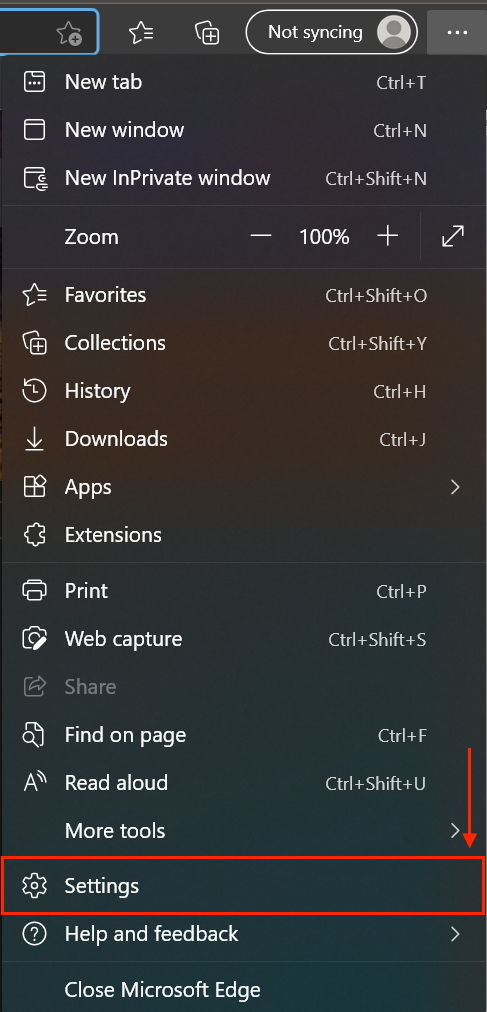
2. Click the three dots (. . .) on the upper right-hand side of the window.

3. Drag the cursor down the list and click Settings.
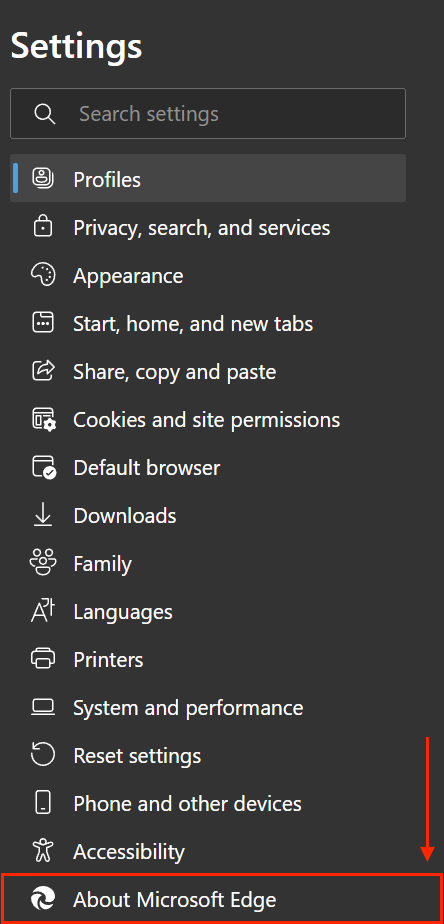
4. Click About Microsoft Edge.
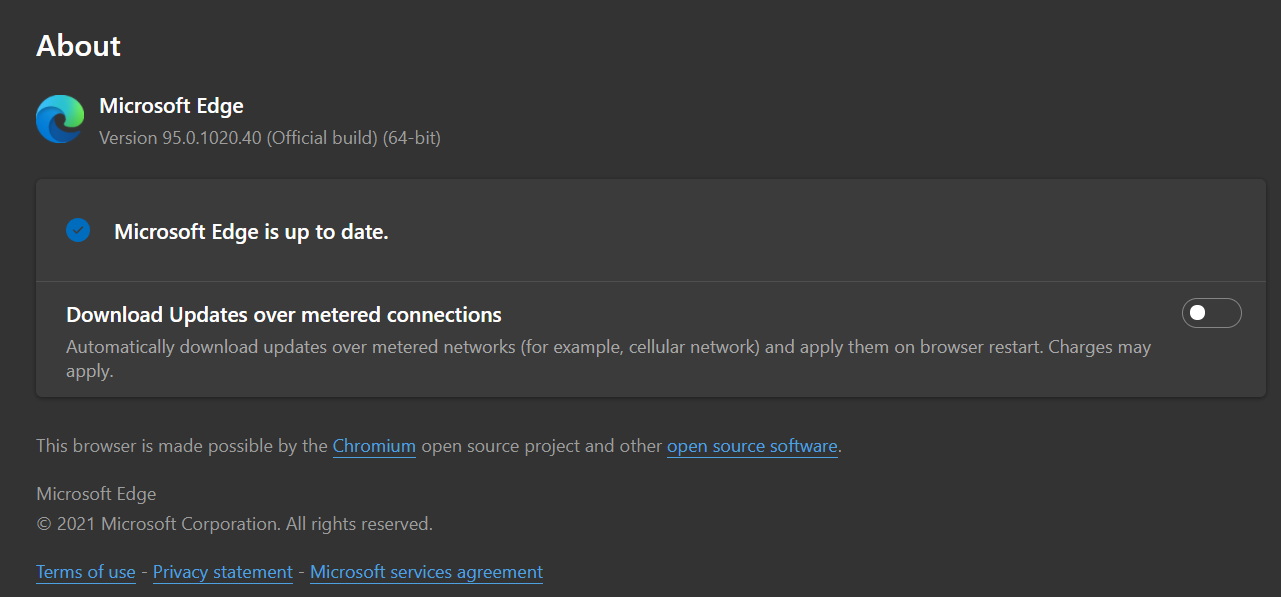
5. Edge will check for updates automatically. If an update is available it will be installed.
6. After installing the update, fully close Microsoft Edge by right-clicking on the icon in the Windows Taskbar and clicking Quit.
Related Articles
- Financial Settings in TapGoods PRO
- Picklist Settings in TapGoods PRO
- Location Settings in TapGoods PRO