

How To: Hyperlink Text in Descriptions of Inventory
TapGoods allows users to add hyperlinks to the descriptions of Items, Accessories, Purchases, and Bundles. You and your Customers can click on these links to access more information about the product. Hyperlinks work both in TapGoods PRO and in Storefront.
TIP: If you are pasting a product description into TapGoods PRO from another platform (Google Docs, Microsoft Word, ChatGPT, etc.), please paste using one of the following shortcuts:
- Mac: CMD + SHIFT + V
- Windows: CTRL + SHIFT +V
This will remove any previous formatting. If you paste without utilizing one of these shortcuts, then the text for the hyperlink may not automatically be distinguished from the rest of the text.
To hyperlink text in a product description, follow the steps listed below:
- Navigate to the Item, Accessory, Purchase, or Bundle that you want to add a hyperlink to.
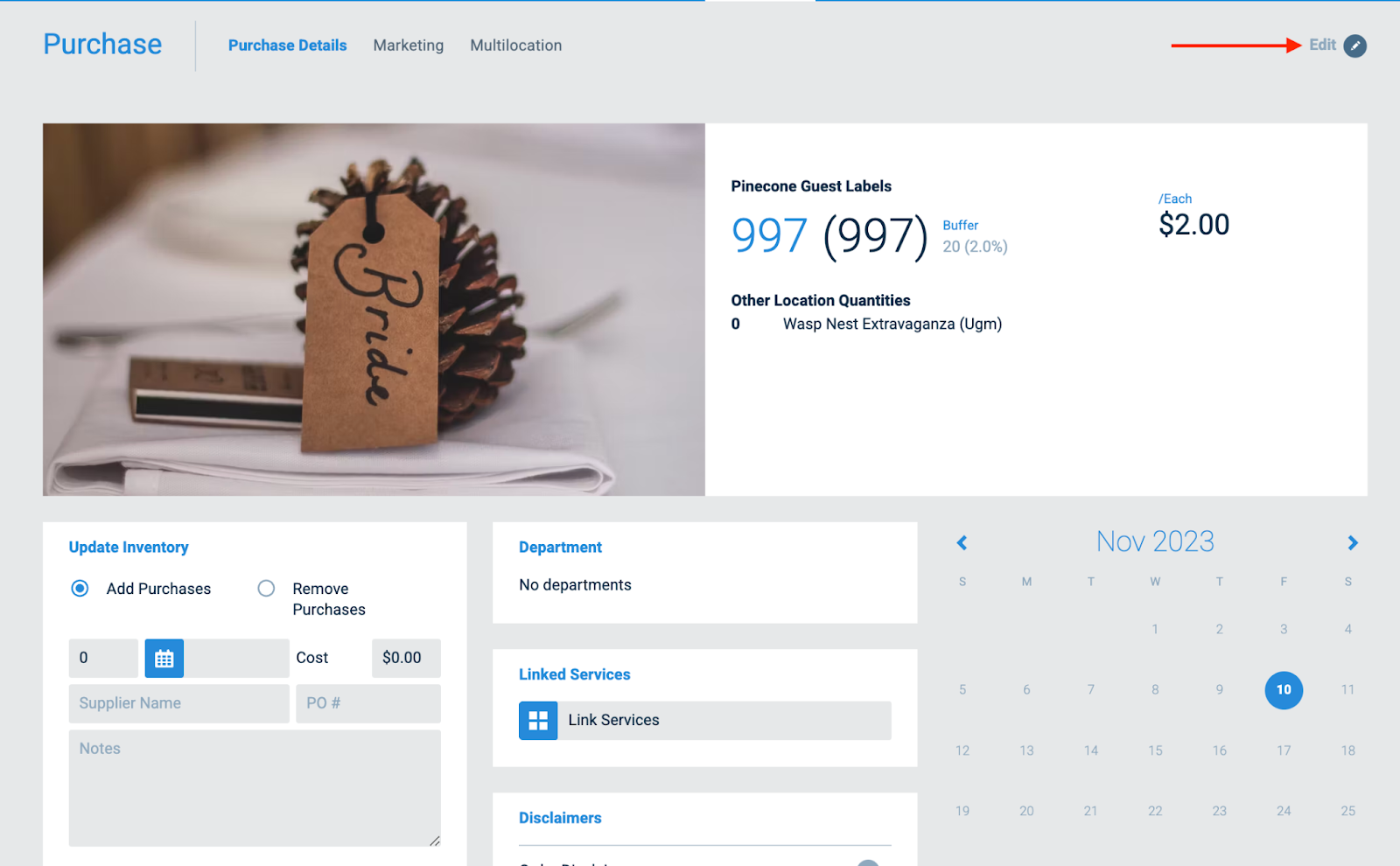
- Click on the Pencil icon to edit the Item, Accessory, Purchase, or Bundle.
- In Edit [Item/Accessory/Purchase/or Bundle], highlight the text in the description that you want to hyperlink.
- Click on the “Link” icon.
- Ensure that that link text is correct, and then type or paste the link into the URL box.
- If you want the hyperlink to open a new tab with the desired page, check the box next to “Open link in new window”. If you don’t want this, you can skip this step.
- Click “Add”.

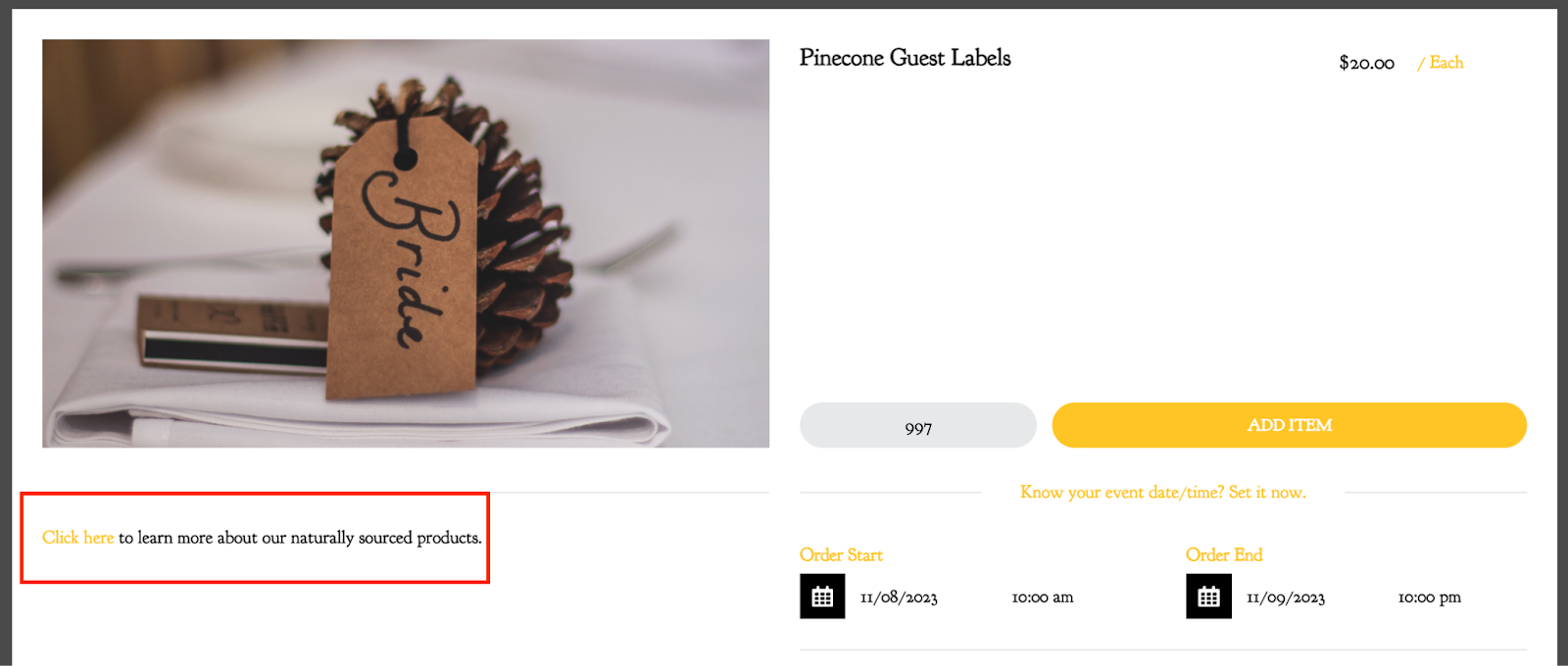
Once you have followed the steps above, the hyperlink will be available and clickable for your internal operations team and for Customers on Storefront.

If you want to remove a hyperlink, simply click on the hyperlinked text while editing the piece of inventory, and the “Remove Hyperlink” icon will become available; click on it!
