
Sales Tax Settings in TapGoods PRO
By default, TapGoods PRO automatically calculates sales tax based on the order’s delivery or pickup address.
We use a third-party tax API to pull in the most accurate sales tax rates, so you don’t have to set them manually. This ensures that every order, whether created in your portal or by a customer on your Storefront, has the correct tax rate applied automatically.
However, we give our users the power to change how Sales Taxes are calculated within Admin>Order Settings.
- How to Navigate to Sales Tax Settings
- Editing Sales Tax Settings in TapGoods PRO
- Creating a Sales Tax Override
How to Navigate to Sales Tax Settings
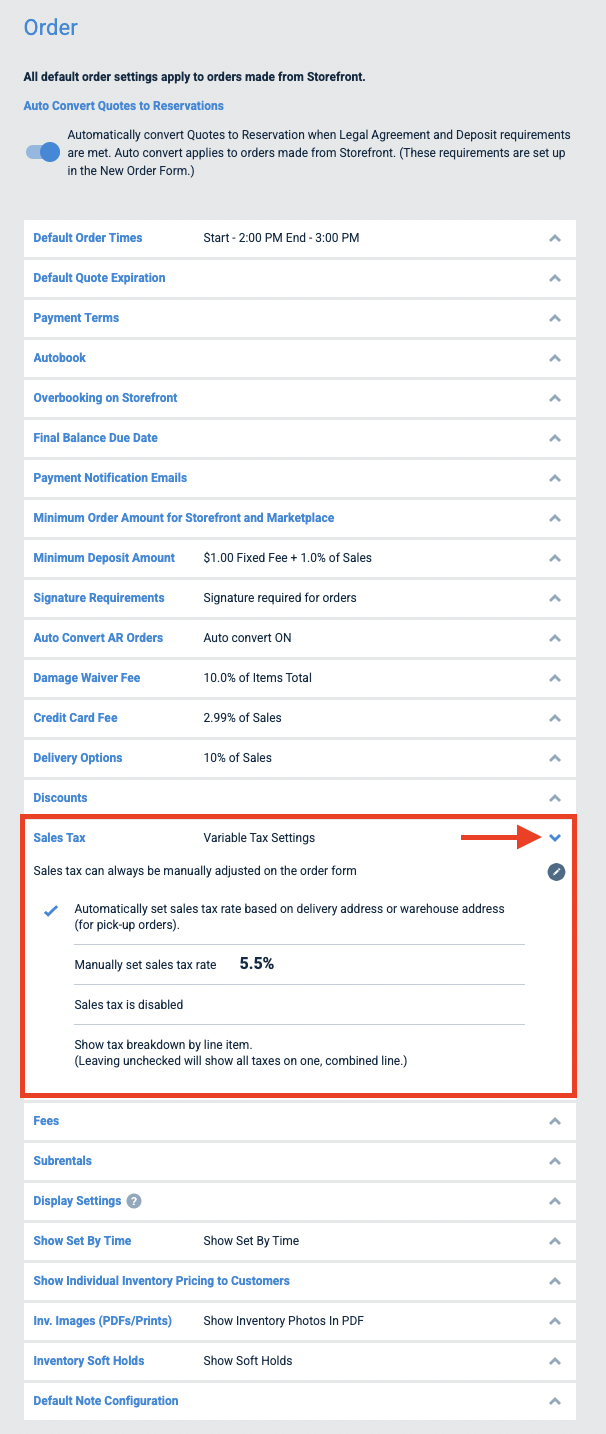
To set up Sales Tax, users must navigate to Order Settings, which are located under Admin on the platform.

In Order Settings, Sales Tax is located underneath Discounts.
Editing Sales Tax Settings in TapGoods PRO
To edit your Sales Tax settings:
-
Go to Admin > Order Settings.
-
Click the dropdown arrow next to the Sales Tax setting.
-
Click the Pencil icon to open the edit menu.
From here, you can choose how TapGoods PRO handles sales tax on your orders.

Option 1: Use Variable Tax Settings (Recommended)
TapGoods PRO can automatically apply the correct sales tax based on the delivery or pickup address of each order. This is done through a third-party tax API that pulls current tax rates based on location.
When enabled, this setting will:
-
Apply accurate tax rates automatically to orders in both TapGoods PRO and Storefront+.
-
Update rates dynamically based on where the order is being delivered or picked up.
Option 2: Manually Set a Sales Tax Rate
If you prefer to apply a fixed sales tax rate across all orders, you can manually set your own percentage.
To set a manual tax rate:
-
Select Manually set sales tax rate.
-
Enter the desired percentage (e.g., 8.25).
-
Click Update Settings.
This rate will apply to all orders, regardless of delivery or pickup location.
Option 3: Disable Sales Tax
If you don’t want TapGoods to apply any sales tax to orders:
-
Select Disable Sales Tax.
-
Click Update Settings.
This will prevent any tax from being automatically calculated or applied.
Optional: Show Tax Breakdown By Line Item
You can choose whether sales tax appears as a single combined charge or broken down by line item on invoices.
To show tax by line item:
-
Check the box next to Show tax breakdown by line item.
-
Click Update Settings.
Creating a Sales Tax Override
A Sales Tax Override allows you to define custom tax rates for specific ZIP codes. You can also control what the tax applies to, whether it’s rental items, purchases, or services.
Here's how to do it:
-
Click the Sales Tax Override button at the bottom of the Sales Tax section.
- First, fill out the Tax Details on the right-hand side.
- Tax Name
- Tax Percentage
-
Choose what the tax applies to by checking any of the following:
-
Rentables
-
Purchases
-
Services
-
- Click Submit.
-
- The Tax will appear on the left side of the slide-out. You can repeat steps 2-3 as many times as necessary to create a list of taxes you want to create for the Zip Codes that will fall under these taxes.
- The Tax will appear on the left side of the slide-out. You can repeat steps 2-3 as many times as necessary to create a list of taxes you want to create for the Zip Codes that will fall under these taxes.
-
Under Zip Codes, enter the ZIP code(s) the override(s) will apply to.
-
Separate multiple ZIP codes with commas.
-
Example:
78704, 78745, 78748
-
- Click Submit to save your changes.
The Zip Code Overrides will appear as a list underneath the Sales Tax Override button.
Related Articles